Loading...
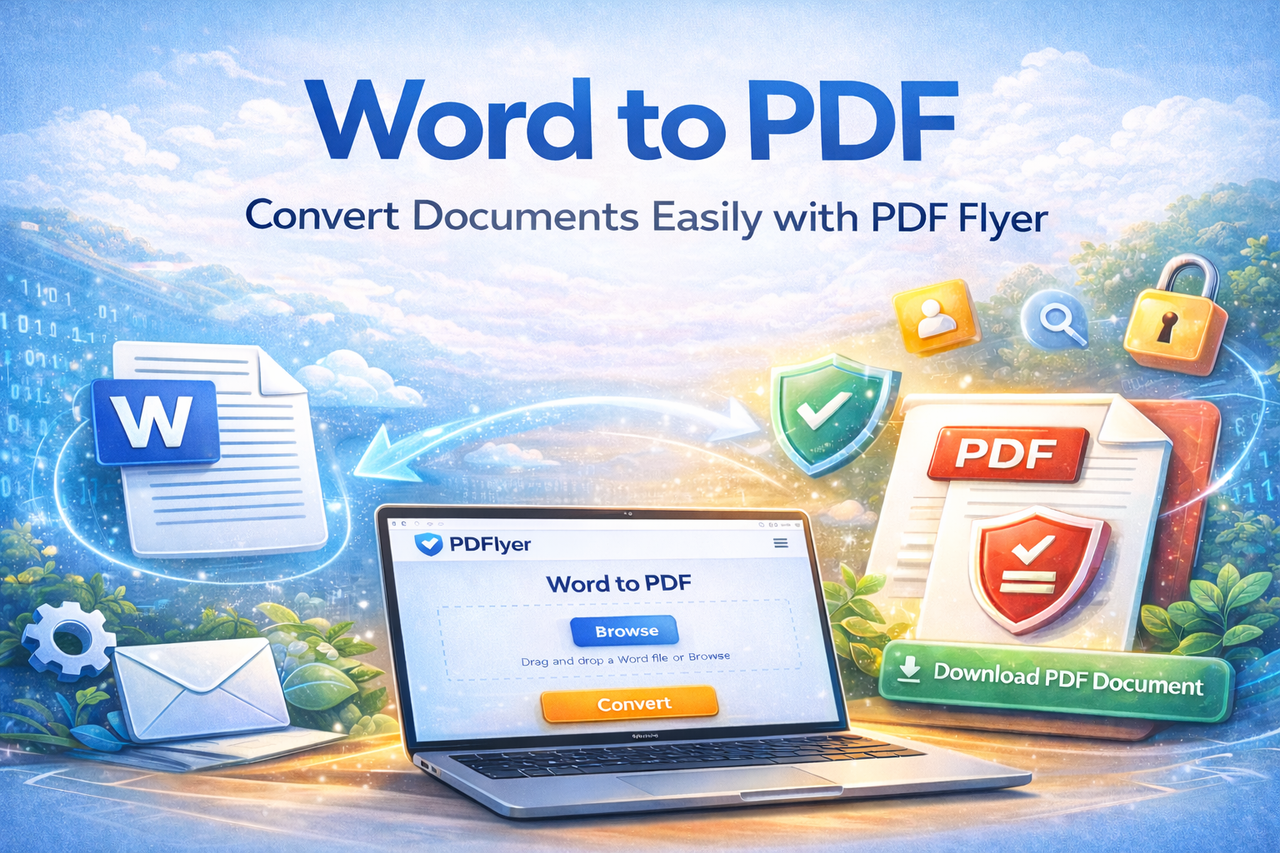
Word to PDF – Convert Documents Easily with PDF Flyer
By Admin on January 20, 2026
Last updated: Invalid Date
Converting Word documents into PDF format is essential when you want to share files professionally, preserve formatting, and prevent unwanted edits. PDFs are widely used for resumes, reports, contracts, and official documents because they look the same on every device.
Why Convert Word to PDF?
Converting Word files to PDF helps you:
- Preserve original layout and fonts
- Share documents professionally
- Prevent accidental changes
- Ensure compatibility across all devices
PDF Flyer makes the conversion process simple and reliable for everyone.
How to Convert Word to PDF Using PDF Flyer
Follow the steps below to convert your Word document into a PDF file.
Step 1: Open the Word to PDF Tool
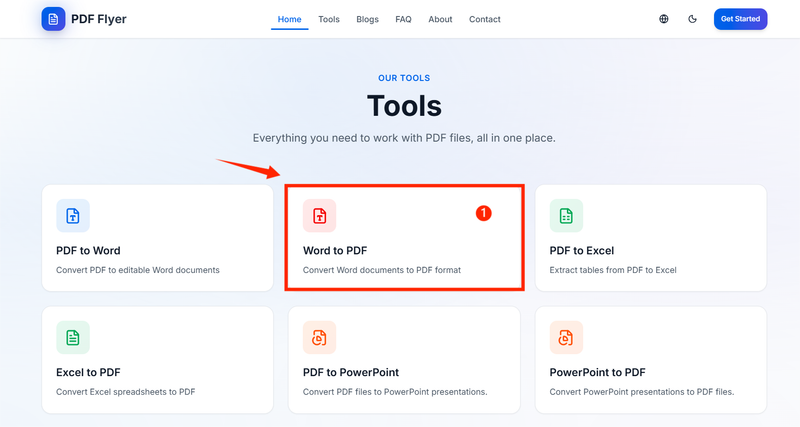
Open the Word to PDF tool on PDF Flyer, as shown in Image 1.
You will see the upload interface ready for conversion.
Step 2: Upload Your Word File
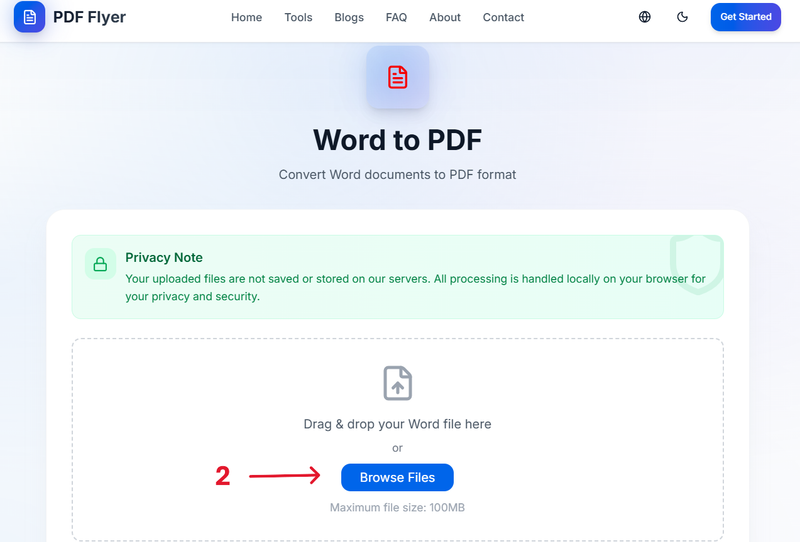
Click on Browse to upload your Word file, or simply drag and drop the document into the upload area, as shown in Image 2.
Step 3: Convert the File
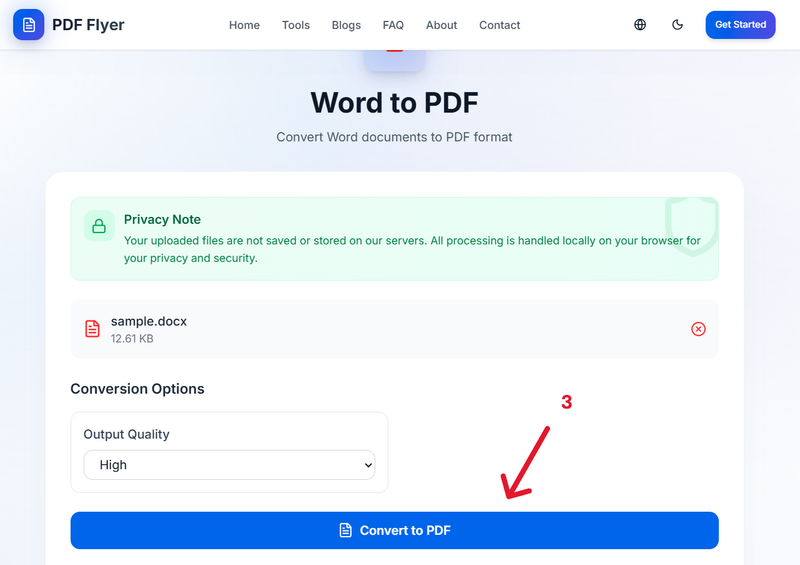
After uploading the file, click on Convert as shown in Image 3.
The conversion will start immediately and usually completes within a few seconds.
Step 4: Download Your PDF Document
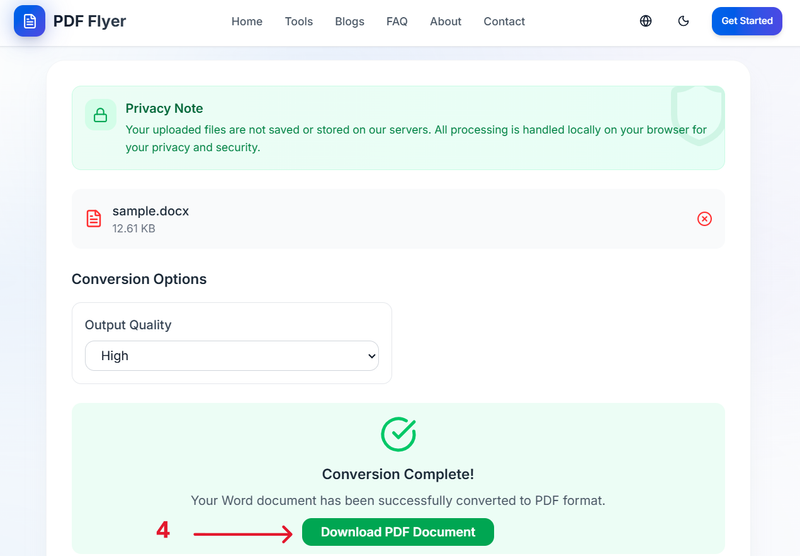
Once the conversion is finished, you will see the Download PDF Document button, as shown in Image 4.
Click it to download your PDF file, and you’re done.
Secure and Privacy-Friendly
PDF Flyer focuses on simplicity and responsible file handling while completing the requested conversion.
Need Help or Have Questions?
If you face any issues or have questions while using the Word to PDF tool, feel free to share your feedback. We are always happy to help.
This guide explains how to convert Word files into PDF format using PDF Flyer.